
qDslrDashboard for Android Review 2026: Powerful Camera Control With a Demanding Setup
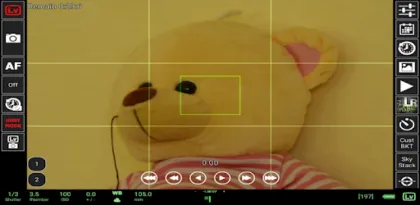

qDslrDashboard turns an Android phone or tablet into a remote control, monitor, intervalometer, focus-stacking assistant, image browser, and automation console for supported Nikon, Canon, and Sony cameras. It can display Live View, change exposure settings, trigger captures, transfer previews, record video on compatible models, create custom brackets, run time-lapse sequences, and even coordinate more than one connected camera.
That feature list sounds universal; the real experience is not. Camera manufacturers expose different capabilities through USB and Wi-Fi, individual models implement remote control differently, and firmware can change behavior. A Nikon body may permit functions that a Sony model does not. Built-in Wi-Fi may offer Live View but block video or file browsing. A USB connection may be fast and stable while requiring a correct OTG adapter and a phone with USB host support.
qDslrDashboard is therefore best understood as a professional-style toolkit, not a one-tap companion app. The interface is dense, setup takes research, and its modest Google Play rating reflects how easily cable, permissions, camera modes, network routing, and model limitations can be blamed on the app. When the complete chain is compatible, however, it offers control that can transform macro, product, landscape, astrophotography, studio, and time-lapse work.
This review examines the Android version in 2026, including its USB and wireless options, Live View, focus tools, bracketing, time-lapse features, image transfer, multiple-camera support, field reliability, and the precautions needed before trusting it on an important shoot.

Start With Compatibility, Not the Feature List
The name suggests broad DSLR support, but qDslrDashboard's actual scope depends on camera protocols. The developer describes control for Nikon and Canon cameras plus Sony mirrorless models through PTP and PTP/IP. Support pages document known exceptions, connection-specific limitations, and functions that manufacturers do not expose.
Before buying, identify the exact camera model, firmware version, Android device, and desired connection. Then check the current compatibility discussion and release notes for that combination. “Canon support” is not enough information; even two bodies from the same generation may expose different movie, Live View, focus, or wireless commands.
The Google Play listing was updated in 2026 with Android 16 support and improved USB connection reliability. The developer's site also documents work on newer Nikon models and partial support for cameras such as the Canon R5 Mark II. Wording such as “still needs work” should be taken literally. A camera can connect while one important property remains unreliable.
Create a short must-have list before purchase: remote shutter, Live View, focus stepping, RAW preview, video start, bulb exposure, bracketing, file transfer, or time-lapse ramping. Confirm those specific functions rather than assuming they follow from basic detection.
USB Connection: Usually the Reliable Choice
On Android, a direct camera connection requires a device with USB host capability and an appropriate USB OTG adapter or cable. Modern USB-C phones may support host mode, but cable wiring, power delivery, hubs, and connectors still matter. A cable that charges successfully is not proof that it carries stable data.
USB usually offers lower latency and greater reliability than a camera's built-in Wi-Fi. Live View responds faster, long sessions avoid radio interference, and more remote-control commands may be available. For studio product work, macro focus stacks, or a camera placed near the operator, it is the preferred starting point.
The physical tether creates its own risks. A short cable can pull on the camera port, a loose adapter can interrupt a long exposure sequence, and a phone hanging from a tripod can strain both devices. Use a flexible, tested cable with strain relief and secure the phone separately. Never let the cable become a trip hazard.
When Android detects the camera, it may ask which app should handle the USB device and whether permission should be granted. Avoid setting an untested default during a critical shoot. If another camera app claims the device first, close it or clear its USB association. qDslrDashboard also includes native USB access choices in its settings; change them only with reference to current documentation.
Wireless Connections: Freedom With More Variables
Wireless control removes the tether and enables useful positions: a camera on a crane, a tripod outside in the cold, a wildlife setup, or a studio body across the room. qDslrDashboard can work with supported built-in camera Wi-Fi, older Nikon WU-1a/1b adapters, Canon wireless hardware, compatible Sony remote functionality, or a network bridge running DslrDashboardServer.
The connection method affects the feature set. Some cameras expose only a subset of USB commands over their internal Wi-Fi. The support FAQ notes examples where video recording or focus control is unavailable in a particular wireless mode. A Wi-Fi connection icon therefore proves transport, not complete remote capability.
Android may also prefer mobile data when a camera network has no internet access. The phone then appears connected to the camera's Wi-Fi while app traffic takes the wrong route. Disabling mobile data temporarily, accepting the “stay connected” prompt, or adjusting network settings can resolve this behavior.
Wireless reliability depends on distance, interference, battery, power-saving policies, and camera sleep timers. Test the full expected duration. A successful five-minute preview does not prove that a two-hour sunset time lapse will survive.
For older cameras, a small OpenWrt router or another device running ddserver can bridge USB camera control onto a network. This is powerful but adds a router, battery, cable, software image, and configuration to the failure chain. Use it after mastering direct USB, not as the first connection attempt.

Live View as an External Monitor
Live View places the camera feed on the larger Android display and overlays controls for shutter speed, aperture, ISO, white balance, focus, histogram, and other available properties. For a camera with a fixed rear screen, this can dramatically improve low-angle, overhead, self-recorded, product, and macro composition.
The phone is not receiving the full quality of the final RAW file. It shows the preview stream the camera provides. Resolution, color, latency, frame rate, and overlays depend on the camera and connection. Use Live View for composition, focus, and exposure guidance, then inspect the captured image at suitable magnification before declaring a critical shot complete.
Some Nikon models disable their physical controls or rear Live View while remotely connected. This is a camera limitation, not necessarily an app failure. Build the workflow around either the Android screen or the camera controls, and verify what remains operational before placing the camera somewhere inaccessible.
Keeping the Android screen active prevents interruption but increases heat and battery use. Lowering brightness and providing external power can help, though charging may complicate a single-port USB setup. A powered hub must be tested with the exact phone and camera.
Remote Focus and Focus Stacking
When the camera and lens permit electronic focus movement in Live View, qDslrDashboard can step focus through a scene and capture a sequence for stacking. This is valuable in macro and product photography, where a single exposure may not keep an entire subject sharp.
Focus stacking requires more than pressing a button. The camera must remain rigid, exposure and white balance should be consistent, the subject must not move, and steps need enough overlap for later software to combine them. Mechanical vibration, changing light, and a drifting subject can ruin a technically complete sequence.
The app automates capture, not final assembly. The resulting images still need stacking software on a computer or capable mobile workflow. Retouching may be required around transparent, reflective, or moving edges.
Support differs by brand. The developer FAQ specifically notes limitations for Sony ILCE focus control in certain implementations. A Sony camera that provides Live View and capture is not automatically capable of qDslrDashboard focus stacking.
Start with a small test sequence, review the nearest and farthest frames, and confirm the lens moved in the expected direction. Only then commit to dozens or hundreds of exposures. Save the working profile so a later session does not begin from memory.

Bracketing and Long Exposures
Custom bracketing lets photographers capture exposures beyond the camera's normal automatic bracket count or spacing. It is useful for high-dynamic-range scenes, interior photography, and controlled exposure tests. qDslrDashboard can adjust values and trigger a planned sequence in compatible modes.
Bracketing should not substitute for checking shutter limits, buffer depth, card write speed, and long-exposure noise reduction. If the camera performs a dark-frame process after every long exposure, the app may wait much longer than the nominal shutter time. A sequence designed around ordinary exposures can time out or drift when processing doubles each capture.
Bulb work introduces further variables. The camera, connection, and app must agree on start and stop behavior while the Android device remains awake. Run a complete night-time rehearsal before traveling to a remote location. Carry a conventional cable release or use the camera's interval timer as a fallback when the image matters more than automation.
Exposure changes can also move physical aperture mechanisms or introduce focus breathing and framing shifts. Automation produces consistency only when the hardware behaves consistently.
Time-Lapse and LRTimelapse Tools
qDslrDashboard provides a simple interval timer and a more advanced LRTimelapse-oriented screen for gradual exposure control through changing light. “Holy Grail” transitions—from day into night or the reverse—are difficult because exposure must change without visible jumps. The app can analyze previews and help ramp shutter speed, aperture, or ISO according to a configured plan.
This is one of the app's most compelling features and one of the least forgiving. A time lapse can run for hours, leaving many opportunities for battery failure, sleep, Wi-Fi loss, cable movement, storage exhaustion, weather, condensation, or an incorrect exposure limit.
Before the real sequence, calculate frame count, final clip length, interval, longest shutter time, card capacity, and power consumption. The interval must remain longer than capture plus processing and transfer overhead. Disable camera features that introduce unpredictable delays unless they are essential.
Preview analysis may use embedded JPEG data even when the camera records RAW. That provides speed, but the final RAW sequence still requires desktop processing and flicker correction. qDslrDashboard is a capture assistant, not the entire time-lapse production pipeline.
Image Browser, Preview, and Transfer
The app can browse supported images on the camera card and local device, download files, and preview JPEG or RAW material through its image-processing libraries. This is helpful for checking sharpness on a larger screen, delivering a quick proof, or copying selected frames without removing the card.
RAW transfer can be slow and storage-intensive. A modern file may exceed tens of megabytes, and downloading every frame over camera Wi-Fi can consume batteries and delay the next shot. When speed matters, use JPEG previews for evaluation and transfer full RAW files later through a card reader.
qDslrDashboard maintains thumbnails in local folders to speed browsing. Settings provide controls to clear local and camera thumbnail caches. Clearing thumbnails does not necessarily delete original photos, but users should read each dialog carefully and distinguish cache cleanup from file deletion.
The local save folder is configurable. Choose a location that Android backup or file-management tools can access, and verify that enough space remains. A phone receiving images during a long shoot can fill unexpectedly, causing transfers or other apps to fail.

Multiple Cameras and Network Sharing
qDslrDashboard can connect to multiple supported cameras and initiate synchronized captures. A master/slave workflow documented for some Nikon configurations can copy exposure settings between bodies. Applications include multi-angle product work, photogrammetry experiments, event rigs, and synchronized reference capture.
Connection sharing can expose a camera connected to one qDslrDashboard instance over the network to another instance. This creates flexible control stations but also expands the network surface. Use a trusted, isolated network and disable sharing when it is not needed.
Every additional camera multiplies cables, permissions, batteries, cards, and compatibility questions. Establish a reliable single-camera workflow first. Label bodies and storage, synchronize clocks, and maintain a manual capture fallback.
Interface and Learning Curve
qDslrDashboard's interface looks like a technical control surface because that is what it is. Icons surround the Live View image, exposure parameters occupy compact areas, and specialized screens assume photography knowledge. It is efficient after learning but far less inviting than a manufacturer's simplified companion app.
The documentation is part of the product experience. The official site explains connection methods, application settings, screens, and advanced tools, while the support forum contains camera-specific knowledge. Some material reflects older versions, so cross-check instructions against current release notes and Android behavior.
Build custom profiles for repeatable jobs and take screenshots of working settings. When troubleshooting, change one variable at a time: cable, access mode, camera USB setting, Wi-Fi route, or app option. Randomly toggling several controls destroys the evidence needed to identify the fault.
Reliability and a Pre-Shoot Checklist
No remote app should be introduced for the first time during paid work. Rehearse with the same phone, camera, firmware, cable, memory card, lens, power arrangement, and connection method intended for the shoot.
Before leaving, confirm:
- The camera model and required feature are documented as supported.
- USB OTG or wireless connection survives the planned duration.
- Camera and Android power are sufficient, with tested backups.
- Cards and phone storage have comfortable free capacity.
- Sleep, battery optimization, and mobile-data routing will not interrupt control.
- Capture destination and RAW/JPEG behavior match expectations.
- A standard remote release or in-camera interval mode is available as fallback.
- The first test image is sharp, correctly exposed, and saved where expected.
During capture, prioritize the photographs over preserving an elaborate automation. If the remote system becomes unstable, simplify.
Privacy and Permissions
Camera control requires access to USB devices or the local network, and image transfer requires storage handling. Optional sound-triggered capture uses microphone input. Permissions should be granted only for the feature being used and reviewed in Android settings afterward.
Downloaded photos can contain faces, locations, client products, documents, and metadata. Treat the phone as part of the photographic storage chain: use a screen lock, device encryption, trusted networks, and prompt transfer to the main backup system.
The current Google Play Data safety section should be consulted before purchase because declarations can change. Network connection sharing should remain off unless deliberately needed, especially on public or shared Wi-Fi.

Strengths
- Deep control for supported Nikon, Canon, and Sony cameras.
- Direct USB and flexible wireless or network connection options.
- Live View, histogram, exposure control, focus movement, and remote capture.
- Focus stacking, custom bracketing, interval, and advanced time-lapse tools.
- Image browsing, preview, and transfer to Android.
- Multiple-camera and synchronized capture possibilities.
- Cross-platform versions support more complex production setups.
- Paid toolkit without a recurring subscription requirement.
Limitations
- Compatibility varies by exact camera, firmware, brand, and connection method.
- Dense interface and documentation create a substantial learning curve.
- Wi-Fi routing and sleep behavior can disrupt long sessions.
- USB demands the correct host-capable device, cable, and OTG setup.
- Some Sony and newer camera functions remain limited or incomplete.
- RAW transfer and Live View can consume storage, power, and bandwidth.
- Hardware failures are difficult to distinguish from software problems.
- Automation still needs a tested manual fallback for important work.
Who Should Buy qDslrDashboard?
qDslrDashboard is best for photographers who know their camera, need more than a simple shutter button, and are willing to test a complete hardware workflow. Macro shooters, product photographers, landscape specialists, astrophotographers, time-lapse creators, and small studio teams can gain enormous value from its advanced tools.
It is a poor fit for someone expecting automatic compatibility with every camera carrying a supported brand name. Casual users who only want to copy JPEGs may prefer the manufacturer's app. Professionals who cannot tolerate setup uncertainty should test extensively and keep dedicated commercial tethering tools as alternatives.
Final Verdict
qDslrDashboard for Android earns 8.2 out of 10. Its capability is exceptional: few mobile apps combine Live View, exposure control, focus stacking, bracketing, time-lapse ramping, file transfer, multiple-camera operation, and network flexibility in one package.
The score is limited by complexity and uneven hardware support. Success depends on more than the app, and the interface does little to hide that reality. A cable, firmware update, Android network decision, unsupported camera command, or sleep timer can derail a session.
For the right photographer, qDslrDashboard is not merely a remote—it is a compact field-control system. Verify the exact camera feature, prefer tested USB when practical, rehearse the entire capture, secure every cable, and retain a manual fallback. With that discipline, the app can enable shots that would otherwise require more expensive dedicated equipment.


