

Shortcut Icon Maker
Rating
Oct 17, 2024Latest update
1.2Version
About Shortcut Icon Maker
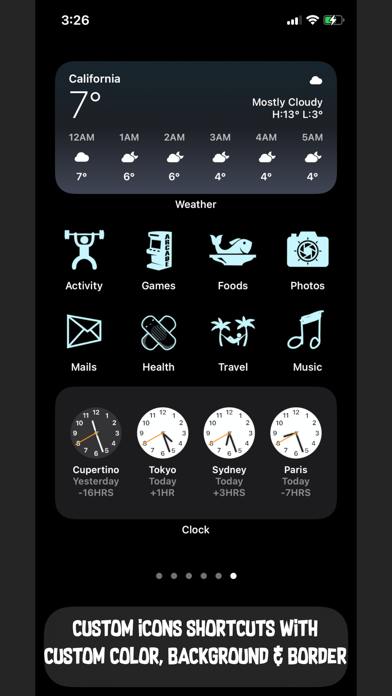
Shortcut Icon Maker app is a must have tool for users to create custom shortcut icons for apps and transform their device homescreen into a beautiful custom display with nice color scheme of their own choice. This is the best tool to have for customising the homescreen with any widgets.
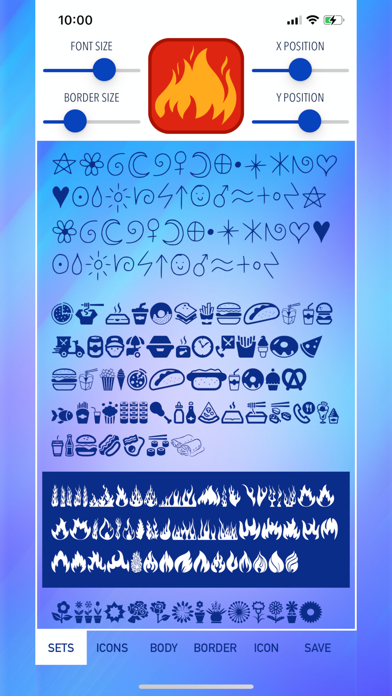
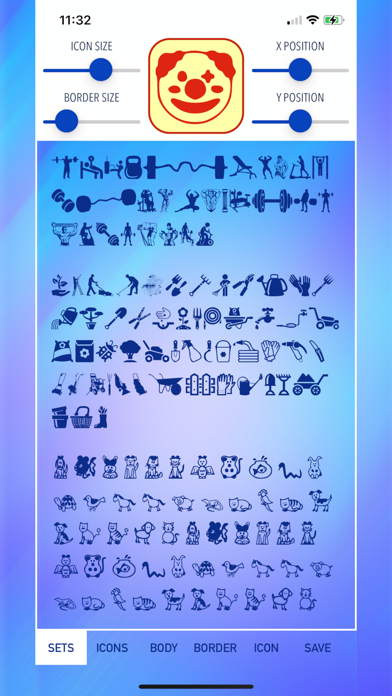
Choose from plenty of icons sets with more than 1,000 total icons from the list with many customisation options as per below:
1. Change the icon size
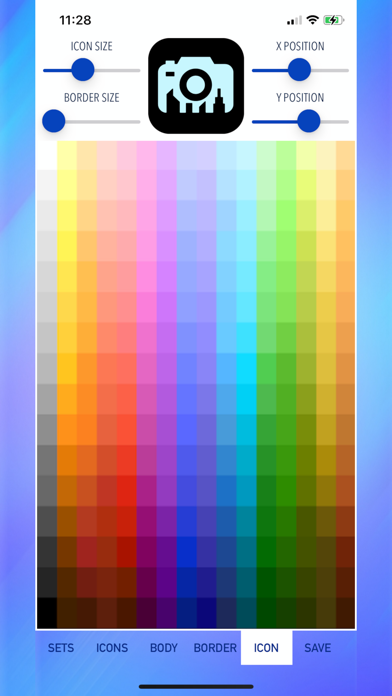
2. Choose the icon colour
3. Create border for the icon
4. Customize border size
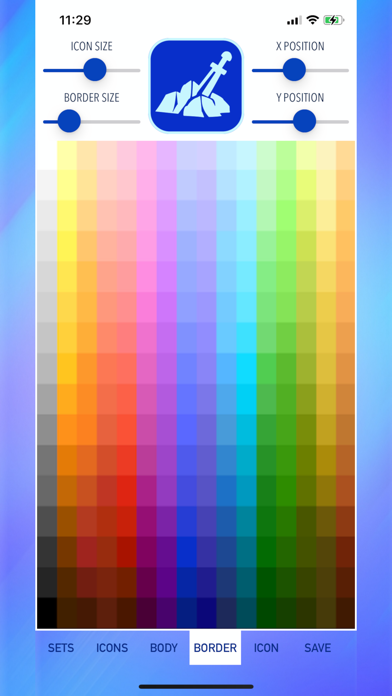
5. Choose border colour
6. Choose icon body / background colour
7. Adjust the icon position up, down, left or right
8. Ability to create background colour for homescreen to match the icon's body colour. In this way, your icons will appear as if their background color is transparent.
All icons created will be saved in the device photo library and can be used directly with apple's own Shortcut app for customisation.
Shortcut Icon Maker app is surely an easy to use app & with iOS14 widget customization features, this will be a perfect match to create a stunning homescreen display for your device.
How to create a custom icon..
1. Open Shortcut app (make sure to use the one from Apple).
2. Select "+".
3. Select "+ Add Action".
4. Select "Scripting".
5. Select "Open App".
6. Select "Choose" and pick the app that you wanted to open with this shortcut.
7. Select the round "..." button at the top right area under "Next".
8. Set your shortcut a name.
9. Tap on "Add to Home Screen".
10. Under the "HOME SCREEN NAME AND ICON", put the name that will be displayed under the Icon (tips: this name can be empty, this will make the icon clean without text at the bottom).
11. Tap the Icon and select "Choose Photo".
12. Select your desired image that was saved with Icon Text Maker app to become the shortcut Icon.
13. Select "Add" after a image has been selected as shortcut Icon.
14. Confirmation message will be displayed to say it is done!.
15. You can now repeat for every Shortcut you needed.
16. Note : you can actually use the same shortcut with different Icon photo set (meaning with the same one shortcut you can create & add as many icon as possible to be put in the home screen, but remember these all different photo icons will only open the one app that you specified earlier). This is useful if you wanted to create icons just for fun & just for nice display purposes.
17. If different app needs to be open with the Icon, you need to create a new shortcut with the above steps for each app.
Enjoy!
Choose from plenty of icons sets with more than 1,000 total icons from the list with many customisation options as per below:
1. Change the icon size
2. Choose the icon colour
3. Create border for the icon
4. Customize border size
5. Choose border colour
6. Choose icon body / background colour
7. Adjust the icon position up, down, left or right
8. Ability to create background colour for homescreen to match the icon's body colour. In this way, your icons will appear as if their background color is transparent.
All icons created will be saved in the device photo library and can be used directly with apple's own Shortcut app for customisation.
Shortcut Icon Maker app is surely an easy to use app & with iOS14 widget customization features, this will be a perfect match to create a stunning homescreen display for your device.
How to create a custom icon..
1. Open Shortcut app (make sure to use the one from Apple).
2. Select "+".
3. Select "+ Add Action".
4. Select "Scripting".
5. Select "Open App".
6. Select "Choose" and pick the app that you wanted to open with this shortcut.
7. Select the round "..." button at the top right area under "Next".
8. Set your shortcut a name.
9. Tap on "Add to Home Screen".
10. Under the "HOME SCREEN NAME AND ICON", put the name that will be displayed under the Icon (tips: this name can be empty, this will make the icon clean without text at the bottom).
11. Tap the Icon and select "Choose Photo".
12. Select your desired image that was saved with Icon Text Maker app to become the shortcut Icon.
13. Select "Add" after a image has been selected as shortcut Icon.
14. Confirmation message will be displayed to say it is done!.
15. You can now repeat for every Shortcut you needed.
16. Note : you can actually use the same shortcut with different Icon photo set (meaning with the same one shortcut you can create & add as many icon as possible to be put in the home screen, but remember these all different photo icons will only open the one app that you specified earlier). This is useful if you wanted to create icons just for fun & just for nice display purposes.
17. If different app needs to be open with the Icon, you need to create a new shortcut with the above steps for each app.
Enjoy!
Shortcut Icon Maker Screenshots
Editor's Recommendation
 Canva: AI Photo & Video Editor
 Proton VPN: Fast & Secure
 Booking.com: Hotels & Travel
 Too Good To Go: End Food Waste
 Waze Navigation & Live Traffic
 Stellarium Mobile - Star Map
 Ticketmaster-Buy, Sell Tickets
 Bolt: Request a Ride
 Life360: Find Friends & Family
 GetYourGuide: Travel & Tickets
 Sky Guide
 Doctolib - Your health partner
Apps Like Shortcut Icon Maker
 Easy Shortcut Icon:customize your favorite icon on Home screen.It is a generator to change the skin of the icon design.Let's create the icon of the original!
 Shortcut Icon Maker
 App icon Generator: icon Maker
 Icon Maker - Custom App Icon
 App Icon Maker - Change Icon
 Icon Changer: App Icon Maker
 Icon Changer - App Icon Maker
 Contact shortcut photo icon ( iFavorite ) for Home screen
 Iconizer - Home Screen Shortcut Icon Creator
 Shortcut Icon
 App Icon Skins - Shortcut for your app on home screen
 One touch call, Apps, home screen shortcut icon ( iFavorite Pro : for Instagram camera, Snapshat, WhatsApp and iOS7 )
Apps by aZeR DiLLs


Shortcut Icon Maker FAQ
How do I download Shortcut Icon Maker from PGYER IPA HUB?
Is the Shortcut Icon Maker on PGYER IPA HUB free to download?
Do I need an account to download Shortcut Icon Maker from PGYER IPA HUB?
How can I report a problem with Shortcut Icon Maker on PGYER IPA HUB?
Did you find this helpfull
Yes
No
Most Popular

ChatGPTIntroducing ChatGPT for iOS: OpenAI’s latest advancements at your fingertips.
This official app is f

Google GeminiThe Google Gemini app is an AI assistant that can help supercharge your creativity and productivity.

Claude by AnthropicGet free access to the newly upgraded Claude 3.5 Sonnet – Anthropic's most advanced model yet. Wheth

GoogleDownload the Google app to stay in the know about things that matter to you. Try AI Overviews, find

CapCut - Video EditorCapCut is a free all-in-one video editing app that helps you create incredible videos.
「Easy to use」

Shop: All your favorite brandsElevate every shopping moment
Shop, track, and explore the latest trends in an all-in-one shopping

Google MapsNavigate your world faster and easier with Google Maps. Over 220 countries and territories mapped an

Uber - Request a rideJoin the millions of riders who trust Uber for their everyday travel needs. Whether you’re running a

ThreadsSay more with Threads — Instagram’s text-based conversation app.
Threads is where communities come t

Gmail - Email by GoogleThe official Gmail app brings the best of Gmail to your iPhone or iPad with robust security, real-ti

TikTokTikTok is THE destination for mobile videos. On TikTok, short-form videos are exciting, spontaneous,

WhatsApp MessengerWhatsApp from Meta is a FREE messaging and video calling app. It’s used by over 2B people in more th

InstagramLittle moments lead to big friendships. Share yours on Instagram.
— From Meta
Connect with friends,

Netflix Game ControllerPlay games on your TV with the Netflix Game Controller.
This app connects to your TV and allows you

AirbnbTHE FASTEST, EASIEST WAY TO AIRBNB
Find inspiration, plan a trip with your group, book it, and go. Y

Telegram MessengerPure instant messaging — simple, fast, secure, and synced across all your devices. One of the top 5

Spotify - Music and PodcastsWith the Spotify music and podcast app, you can play millions of songs, albums and original podcasts

DramawaveDramawave - Stream Endless Drama Shorts, Anytime, Anywhere
Welcome to Dramawave the ultimate destina

Whatnot - Live Video ShoppingWhatnot is a social marketplace where you can discover some of your favorite products like sports ca

Google ChromeDownload the new Google Chrome for your iPhone and iPad. Now more simple, secure and faster than eve

FacebookWhere real people propel your curiosity. Whether you’re thrifting gear, showing a reel to that group

XThe X app is the trusted global digital town square for everyone.
With X, you can:
Post content for

Indeed Job SearchDiscover your next job opportunity on Indeed, the free job search app designed to connect you with b

Duolingo - Language LessonsLearn a new language with the world’s most-downloaded education app! Duolingo is the fun, free app f