
VLC for Android Review — Fixing Audio Sync During Playback


In a recorded interview, you can sometimes hear the first word while the speaker's mouth is still closed. On a phone, the same mismatch might come from the recording or from the way you're listening. VLC for Android lets you shift the audio during playback. The control is quick enough to make a slightly mistimed interview watchable, as long as the timing stays wrong by roughly the same amount throughout the clip.

Check whether the delay follows the file or the headphones
Pick a moment with a clear visual cue and a short sound. A clap or the instant a cup touches a table is easier to judge than a long vowel. Replay the same moment through the phone speaker, then through the headphones you intend to use. If the mismatch appears only through the headphones, treat any correction as specific to that listening setup. Saving it for the video can make the phone speaker sound wrong next time.
Then replay another cue near the end of the recording. If the start needs a small adjustment but the end needs a much larger one, a single offset will only line up part of the clip. That is worth finding out before spending time fine-tuning the opening.
Move the audio in the direction you need
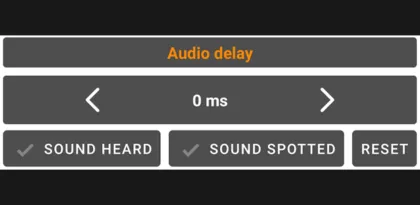
Open the audio and subtitles panel in the video player, then use the audio track's options to select Audio delay. In VideoLAN's documented interface, the arrows move the audio in 50 millisecond steps, and Reset takes you back to the starting point. If a clap sounds before the hands meet, delay the audio. If the hands meet first, move the audio earlier. Change one or two steps and replay the same moment. A consistent cue gives you a better comparison than a different sentence every time. VideoLAN's Android video player guide

The widget can also estimate the offset using Sound heard and Sound spotted. Tap the buttons in the order you hear and see the event. This is useful when the gap is obvious but hard to estimate in milliseconds. For a small mismatch, the arrows are easier to use because a late tap can introduce an error about as large as the one you're trying to fix.
Save only the adjustments you expect to reuse
Once the cue lines up, check a short stretch of dialogue and another visible impact later in the clip. If both look right and you will watch the same file again, VLC has a Save audio delay setting for individual videos. The adjustment applies to playback in VLC. A copy sent to another person still needs its own playback correction or an edited export. VideoLAN's Android video settings
Verdict
VLC's audio delay control earns its place for local recordings with a steady offset. The manual steps are precise enough to refine a correction, and the timing buttons give you a starting point for bigger gaps. If the mismatch grows during the video, or the corrected clip needs to play the same way on someone else's device, the adjustment is best used to diagnose what needs fixing in the source.


